PowerPoint presentations are more than just slides with text and images — they’re tools for engaging, storytelling, and impact. One often-ignored but powerful feature in is Audio in PowerPoint. Adding background music, narration, or sound effects can make your presentation feel more dynamic and memorable.
In this guide, you’ll learn how to insert and format audio in PowerPoint, step by step, along with tips to use it effectively for professional, educational, or creative presentations.
🎵 Why Use Audio in PowerPoint?
Audio can transform your presentation from static to lively. Here’s why adding sound is worth your time:
- Keeps your audience engaged: A subtle background track or well-timed sound effect grabs attention.
- Supports storytelling: Music and narration help emphasize emotions and key ideas.
- Enhances accessibility: Narrations can help explain visuals or assist audiences with reading difficulties.
- Improves professionalism: A clean voice-over adds polish to business presentations and e-learning slides.
🔊 Step 1: Inserting Audio in PowerPoint
Follow these simple steps to add audio to your slides:
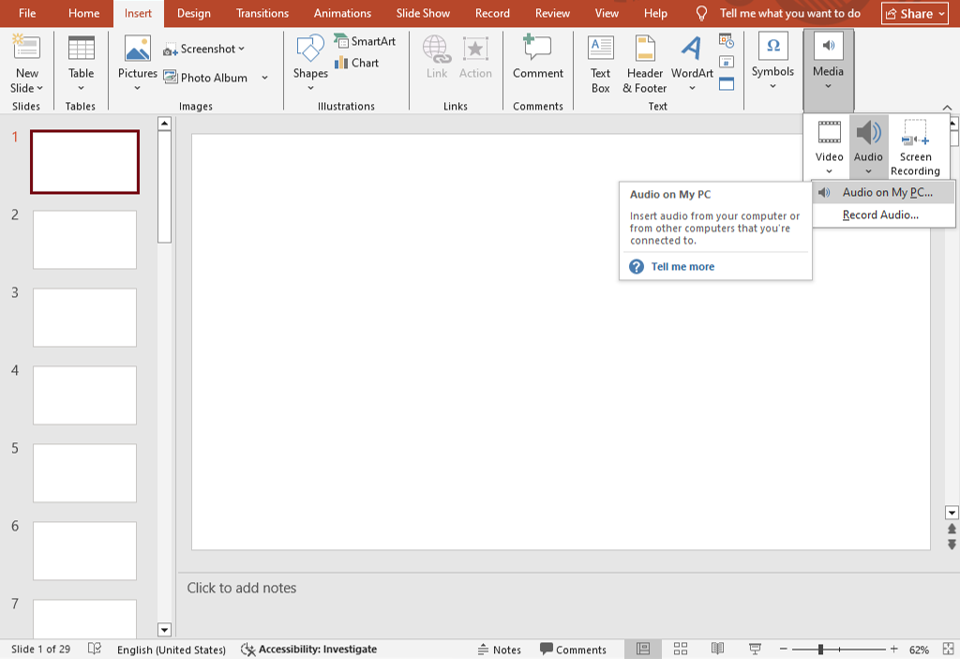
- Go to the “Insert” tab on the PowerPoint ribbon.
- Click on “Audio” (in the Media group).
- You’ll see two options:
- Audio on My PC – upload music or sound files saved on your computer.
- Record Audio – record your voice directly within PowerPoint.
- Once selected, PowerPoint will place a small audio icon on your slide.
💡 Tip: You can move the icon anywhere or hide it if you want your audio to play automatically.
🎙 Step 2: Recording Your Own Narration
If you’re explaining concepts or teaching, recording your own voice can be more personal and effective.
Here’s how to do it:
- Click Insert → Audio → Record Audio.
- Type a name for your recording.
- Press the red circle (record button) and start speaking.
- Click the square stop button when done.
- Hit Play to review it.
- Click OK to insert the audio into the slide.
🔧 Pro tip: Use a good quality microphone and record in a quiet environment. You can also use noise-cancellation software for clearer sound.
🎚 Step 3: Formatting and Playback Options
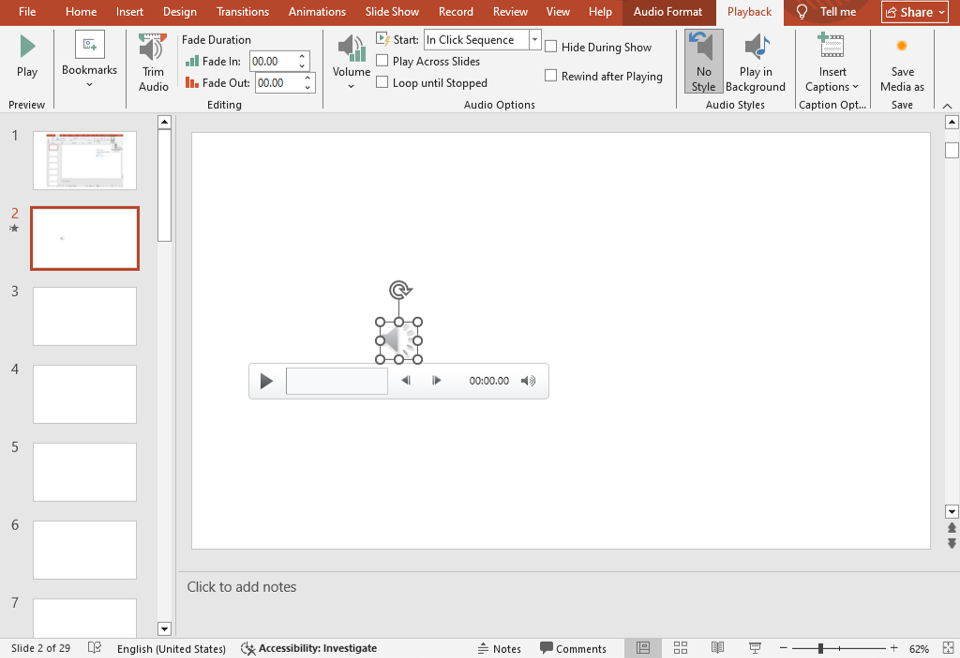
After inserting audio, select the audio icon to open the Playback tab under “Audio Tools.”
Here you can customize how your sound behaves:
▶ Playback Settings:
- Start Automatically: Audio plays as soon as the slide appears.
- Start On Click: Plays only when you click the audio icon.
- Play Across Slides: Great for background music throughout your presentation.
- Loop Until Stopped: Perfect for repeating background sounds.
- Hide During Show: Keeps your slide neat while audio still plays.
🔄 Trim and Adjust Volume:
- Use Trim Audio to cut unwanted parts from the beginning or end.
- Adjust volume to balance it with your narration or other sounds.
🎧 Add Fade Effects:
You can create a smoother experience by applying fade-in or fade-out effects.
Go to Playback → Fade In/Fade Out and set duration (e.g., 2-3 seconds).
🎼 Step 4: Synchronizing Audio with Animations or Slides
Want your sound to play with specific actions?
Use the Animation Pane to coordinate timing:
- Select the audio icon.
- Go to Animations → Animation Pane.
- Right-click the audio file → Timing.
- Under Start, choose With Previous or After Previous depending on how you want it synced.
This helps in aligning sound with visuals or transitions, especially for marketing or storytelling decks.
💡 Smart Tips for Using Audio Professionally
- Keep audio short and purposeful – long tracks may distract.
- Use soft background music for corporate decks; upbeat for creative ones.
- Always test playback on the actual presentation device.
- Compress media files to reduce PowerPoint file size (File → Info → Compress Media).
- Avoid copyrighted songs — use royalty-free tracks from sources like Bensound or Pixabay Music.
🎨 Enhance Your Slides with Better Visuals
While audio adds impact, visuals still play the lead role. For clean, ready-made designs that let you focus on content and delivery, explore SlideMasterz Premium PowerPoint Templates — crafted for business, education, and creative projects.
Or, if you’re just starting out, grab our free PowerPoint templates to instantly upgrade your slides.
🔗 Related Learning Blogs
Keep improving your PowerPoint skills with these tutorials:
- Working with Icons in PowerPoint: Simple Tricks for Better Visuals
- PowerPoint Backgrounds: How to Choose and Customize Them
- How to Insert and Format Shapes in PowerPoint
✅ Final Thoughts
Adding and formatting audio in PowerPoint is one of the easiest ways to make your presentation stand out. Whether it’s a calm background tune or a confident voice-over, audio helps convey emotions, reinforce messages, and hold audience attention.
The best part? PowerPoint gives you all the tools you need — just a few clicks and your slides come to life!