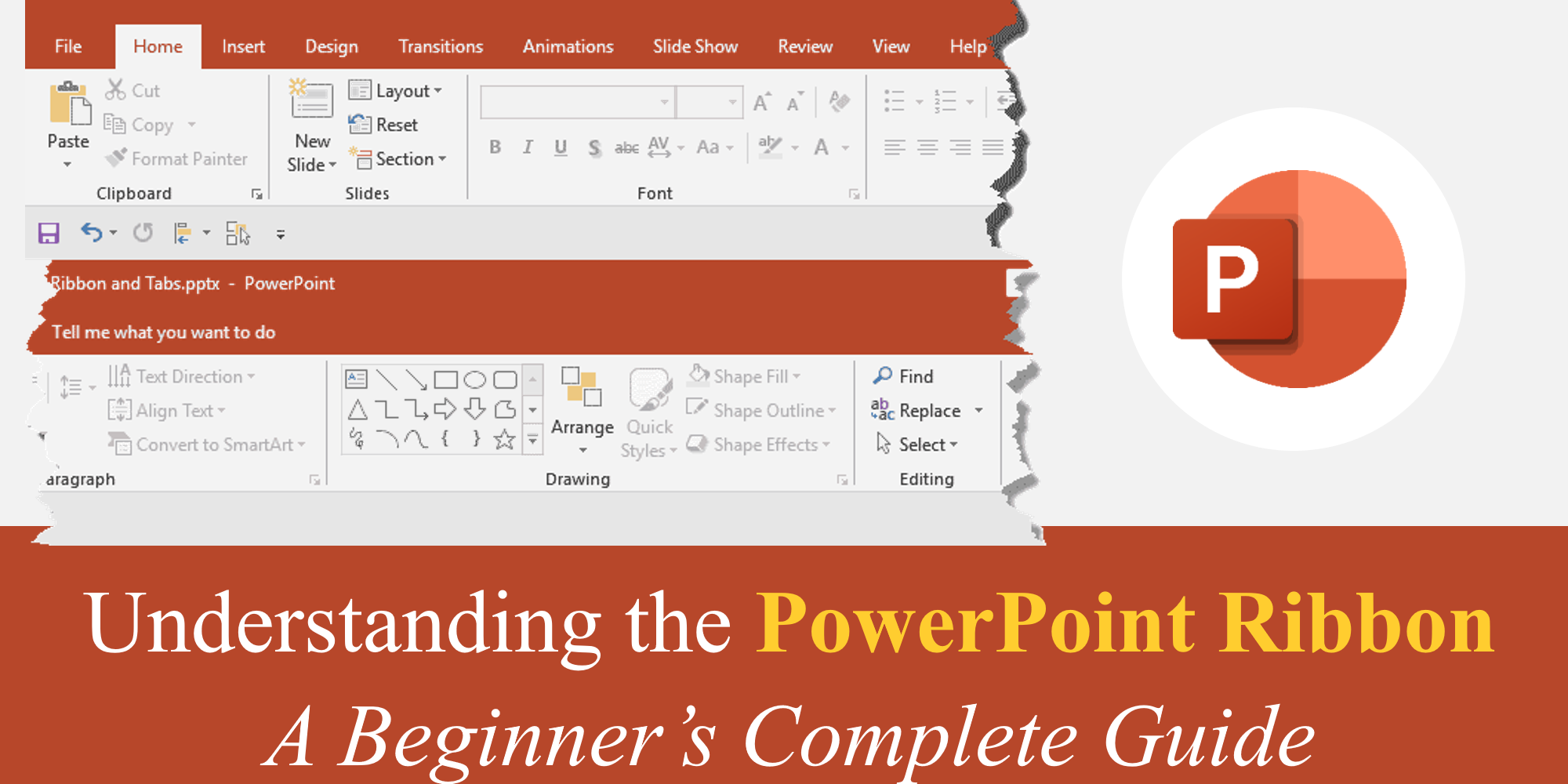
If you’re new to PowerPoint, the first thing you notice after opening the software is a wide strip of tools at the top of the screen. This area is called the PowerPoint Ribbon, and understanding it is the first and most important step in learning PowerPoint properly.
Many beginners feel overwhelmed by the number of buttons and options available. But once you understand how the Ribbon is structured and how to use it efficiently, PowerPoint becomes much easier, faster, and more enjoyable.
In this beginner-friendly guide, you’ll learn what the PowerPoint Ribbon is, how it works, and how to use its core features correctly.
What Is the PowerPoint Ribbon?
The Ribbon is the main command center of PowerPoint. It contains all the tools you use to:
- Create slides
- Add text, images, and shapes
- Format content
- Apply animations and transitions
- Run and control slide shows
Instead of hiding features inside menus, PowerPoint organizes them into tabs so users can find tools quickly.
Think of the Ribbon as a toolbox—each tab is a different drawer, and each button is a specific tool.

Why Learning the Ribbon First Is Important
Many users try to learn PowerPoint by trial and error. This leads to:
- Slow workflow
- Missed features
- Poor slide design
- Frustration
When you understand the Ribbon:
- You work faster
- You design cleaner slides
- You avoid common beginner mistakes
- You unlock powerful features early
Every advanced PowerPoint skill builds on Ribbon knowledge.
The Main Tabs in the PowerPoint Ribbon (Explained Simply)
Let’s break down the core Ribbon tabs you’ll use most often.
- Home Tab – The Most Used Tab
The Home tab is where you’ll spend most of your time.
It includes tools for:
- Adding and formatting text
- Creating bullets and lists
- Aligning objects
- Copying and pasting content
Key features beginners should know:
- New Slide – Add slides with different layouts
- Font options – Change font style, size, color
- Paragraph tools – Alignment, spacing, bullets
- Arrange tools – Align, group, and order objects
If you only learn one tab first, start here.
- Insert Tab – Adding Content to Slides
The Insert tab lets you add elements to your slides.
You can insert:
- Text boxes
- Images
- Shapes
- Icons
- Charts
- Tables
- Audio and video
For example:
- Use Insert → Pictures to add images
- Use Insert → Shapes to design layouts
- Use Insert → Icons for clean visuals
Many beginners don’t realize how powerful the Insert tab is—it’s the foundation of visual slide design.
Related reading for beginners:
- How to Insert and Format Shapes in PowerPoint
- Working with Icons in PowerPoint: Simple Tricks for Better Visuals
- Design Tab – Controlling the Look of Slides
The Design tab controls how your presentation looks overall.
It includes:
- Themes
- Variants
- Slide size
- Background formatting
Instead of designing every slide manually, themes apply:
- Colors
- Fonts
- Background styles
If you want quick, professional results, this tab is essential.
For beginners who want ready-made designs:
- Free templates:
https://slidemasterz.com/powerpoint-templates-free-downloads/ - Premium templates:
https://slidemasterz.com/premium-powerpoint-templates-for-business-education-creatives/
Using templates teaches you how professional Ribbon settings work together.
- Transitions Tab – Moving Between Slides
The Transitions tab controls how one slide changes to the next.
You can:
- Choose transition effects (Fade, Push, Wipe, etc.)
- Adjust speed and direction
- Apply transitions to all slides
Beginners should stick to simple transitions like Fade for a professional look.
(We’ve covered this in depth in:
PowerPoint Slide Transitions: A Complete Beginner’s Guide)
- Animations Tab – Animating Slide Content
Animations affect objects on a slide, not the slide itself.
You can animate:
- Text
- Images
- Shapes
- Icons
Common beginner animations:
- Appear
- Fade
- Fly In
The Animation Pane (inside this tab) helps control timing and order.
Best practice:
Use animations to support understanding, not to impress.
- Slide Show Tab – Presenting Your Slides
The Slide Show tab controls how your presentation runs.
Key features:
- Start from beginning
- Presenter View
- Rehearse Timings
- Record Slide Show
If you’re presenting live or recording content, this tab is crucial.
We recently covered:
- PowerPoint Rehearse Timings: How to Control Presentation Flow
- View Tab – Changing How You Work
The View tab doesn’t affect your slides—it affects how you work.
You can switch between:
- Normal View
- Slide Sorter View
- Outline View
- Notes Page
You can also enable:
- Rulers
- Gridlines
- Guides
These features help with alignment, structure, and planning.
Contextual Tabs – Tools That Appear When Needed
One powerful Ribbon feature beginners often miss: contextual tabs.
These tabs appear only when you select something specific.
Examples:
- Select an image → Picture Format tab appears
- Select a shape → Shape Format tab appears
- Select audio/video → Playback & Format tabs appear
This keeps the Ribbon clean and relevant.
Beginner Mistakes to Avoid with the Ribbon
❌ Randomly clicking buttons
❌ Ignoring contextual tabs
❌ Overusing animations and transitions
❌ Designing slides without understanding layout tools
❌ Not exploring each tab systematically
Learning the Ribbon step-by-step avoids these issues.
Best Way to Learn the Ribbon Faster
The fastest way to understand the Ribbon is by:
- Practicing with real slides
- Using professionally designed templates
- Exploring one tab at a time
Templates help you see how tools are meant to be used.
Start here:
- Free templates:
https://slidemasterz.com/powerpoint-templates-free-downloads/ - Premium templates:
https://slidemasterz.com/premium-powerpoint-templates-for-business-education-creatives/
Outbound Trusted Resource
- Microsoft PowerPoint Help Center
https://support.microsoft.com/powerpoint
Conclusion
The PowerPoint Ribbon is not something to fear—it’s something to master. Once you understand its structure and purpose, PowerPoint becomes logical, predictable, and powerful.
Every advanced PowerPoint skill—design, animation, storytelling, data visualization—starts with the Ribbon. Master this first, and everything else becomes easier.