If you’ve ever struggled with messy layouts or misaligned text in PowerPoint, you’re not alone. One of the most common mistakes presenters make is not understanding how to use text boxes correctly.
A well-structured text box is the foundation of a clean, professional slide — it controls spacing, alignment, and consistency. In this guide, we’ll walk you through everything you need to know about text boxes in PowerPoint: from inserting and formatting to using them creatively in your slide designs.
What Is a Text Box in PowerPoint?
A text box is simply a container for text. But it’s much more than that — it gives you full control over how and where your text appears. Unlike placeholders (which are pre-formatted areas in slide layouts), text boxes let you freely position content anywhere on your slide.
This flexibility makes text boxes perfect for:
- Adding callouts or captions
- Creating custom layouts
- Emphasizing important quotes
- Designing creative title slides
In short, mastering text boxes means mastering PowerPoint’s most fundamental design element.
How to Insert a Text Box
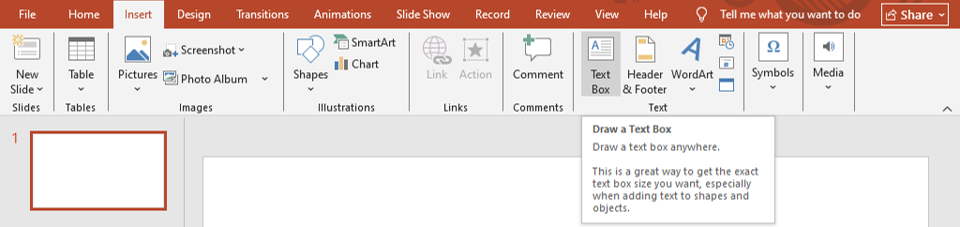
Adding a text box in PowerPoint is simple:
- Go to the Insert tab on the ribbon.
- Click Text Box.
- Click anywhere on your slide and start typing!
You can drag the corners to resize or move it freely around your slide.
💡 Tip: Hold Shift while resizing to maintain proportions, and use Ctrl + Arrow Keys for precise positioning.
Formatting Your Text Box
Once your text is in place, it’s time to make it visually appealing. PowerPoint gives you full control over formatting.
- Change Font and Size
Highlight your text and use the Home tab to adjust font, size, and color. Choose fonts that reflect your brand or presentation theme. For guidance, see our detailed post:
👉 Typography in PowerPoint: Choosing the Right Fonts for Impact
- Adjust Alignment and Spacing
Select your text box and use the Paragraph group to align text (left, center, right, or justified). Use Line Spacing Options to add breathing room and make your text more readable.
- Add Background Colors or Borders
Under the Shape Format tab, apply Shape Fill for background color or Shape Outline for borders. Use subtle colors to make your text stand out without overwhelming your design.
- Apply Shape Effects
Want your text to pop? Try Shadow, Glow, or Soft Edges effects — but use them sparingly. Simplicity always wins in presentation design.
Using Text Boxes Effectively: Best Practices
Here are a few expert tips to make your text boxes work smarter:
- Keep Consistent Margins
Avoid placing text too close to the box’s edge. Leave padding for readability and a cleaner appearance.
- Align Everything
Consistent alignment creates visual harmony. Use Guides and Grids (View → Guides) to line up text boxes perfectly.
👉 Learn more in our post on Using Grids and Guides in PowerPoint for Perfect Alignment
- Use Text Boxes for Layout Control
Instead of typing directly into placeholders, use text boxes to structure your content your way — especially when designing infographics, side-by-side comparisons, or image captions.
- Combine with Shapes
Place text boxes inside shapes for better visual hierarchy. For example, create rounded boxes with colored backgrounds to highlight key points.
👉 Related read: How to Insert and Format Shapes in PowerPoint (Step-by-Step)
Creative Ways to Use Text Boxes
Once you’re comfortable with basic formatting, try these creative techniques:
- Create Quote Slides
Use large text boxes with stylized fonts for quotes or key takeaways. Add your brand’s color behind the text for emphasis.
- Build Custom Infographics
Combine multiple text boxes with shapes and icons to create your own infographic layouts.
👉 Check out our guide: How to Create Eye-Catching Infographics in PowerPoint
- Design Section Headers
Use full-width text boxes with bold typography to divide sections of your presentation. This improves flow and keeps your audience engaged.
- Layer Text Over Images
Add semi-transparent backgrounds to make text readable over photos — a powerful trick for title slides or case study presentations.
Troubleshooting Common Text Box Issues
Even experienced users make text box mistakes. Here’s how to fix them:
- Text not fitting properly?
→ Use AutoFit (Right-click → Format Shape → Text Options → Text Box → Shrink text on overflow). - Text boxes misaligned?
→ Turn on Smart Guides to help snap them into perfect position. - Inconsistent font styles?
→ Use the Slide Master to apply consistent formatting across all slides.
👉 Read more here: Using PowerPoint’s Slide Master for Consistent and Professional Designs
PowerPoint Text Boxes in Professional Templates
If you’re designing slides from scratch, manually setting up text boxes can take time. That’s where pre-designed templates come in handy.
At SlideMasterz, every Free PowerPoint Template and Premium Template comes with perfectly formatted text boxes that maintain alignment, spacing, and readability — so you can focus on your message, not formatting.
You can customize them easily, change fonts, or move text boxes as needed without breaking the layout.
Conclusion
Text boxes may seem simple, but they’re the backbone of effective PowerPoint design. When used correctly, they bring structure, balance, and clarity to your presentation.
By mastering text boxes, you’ll create slides that look organized, professional, and visually appealing — whether for business pitches, reports, or classroom presentations.
Start exploring our Free PowerPoint Templates to see great examples of text box use — and if you want even more design flexibility, upgrade to our Premium PowerPoint Templates collection.