When learning PowerPoint, most beginners jump straight into adding text or images—but the real foundation of every presentation is understanding slides, layouts, and placeholders. These three elements control how your content is structured, aligned, and displayed.
If you’ve ever wondered why your text suddenly moves, why images don’t align properly, or why some slides look professional while others feel messy, the answer usually lies here.
In this beginner-focused guide, you’ll learn how PowerPoint slides work, what layouts actually do, and how to use placeholders correctly to build clean, professional presentations from the start.
What Is a Slide in PowerPoint?
A slide is a single page in your presentation. Each slide is designed to communicate one main idea.
Good presentations use:
- One idea per slide
- Clear visual hierarchy
- Consistent structure
PowerPoint gives you different tools to build slides efficiently—layouts and placeholders are the most important of them.
How to Create a New Slide
To add a new slide:
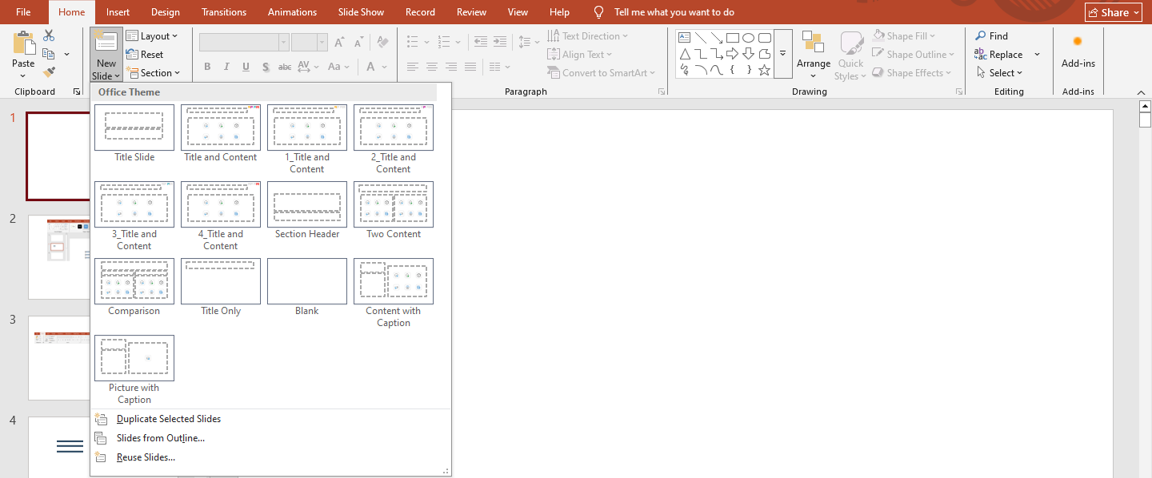
- Go to the Home tab
- Click New Slide
- Choose a slide layout
Many beginners skip step 3—and that’s where problems begin.
Understanding Slide Layouts (Very Important)
A layout defines where text and objects are placed on a slide. It controls spacing, alignment, and structure.
Common layouts include:
- Title Slide
- Title and Content
- Section Header
- Two Content
- Blank
Each layout contains placeholders, not random text boxes.
What Are Placeholders?
Placeholders are pre-defined containers for content such as:
- Titles
- Body text
- Images
- Charts
- Tables
- Icons
They look like dotted boxes with icons inside.
Why placeholders matter:
- They align content automatically
- They maintain consistency
- They work with Slide Master
- They respond correctly in Outline View
Using placeholders correctly is one of the biggest differences between beginner and professional PowerPoint users.
Slide Layout vs Text Box (Key Difference)
Many beginners add text boxes everywhere. This causes alignment and consistency issues.
| Feature | Placeholder | Text Box |
| Alignment | Automatic | Manual |
| Consistency | High | Low |
| Works with Slide Master | Yes | No |
| Outline View support | Yes | No |
Best practice:
Use placeholders whenever possible. Use text boxes only when needed.
(Related reading:
https://slidemasterz.com/powerpoint-text-boxes-how-to-use-them-correctly/)
How to Change a Slide Layout
If you chose the wrong layout:
- Select the slide
- Go to Home → Layout
- Choose a new layout
Your content will automatically adapt to the new structure—no redesign needed.
Common Slide Layouts Explained
- Title Slide
Used for the opening slide.
- Presentation title
- Subtitle or presenter name
- Title and Content
The most commonly used layout.
- One title placeholder
- One content placeholder (text, image, chart, etc.)
- Two Content
Perfect for comparisons.
- Left content
- Right content
- Section Header
Used to divide topics.
- Large title
- Optional subtitle
- Blank Slide
Use only when:
- Designing custom layouts
- Creating full-image slides
How Placeholders Improve Slide Design
Using placeholders helps you:
- Maintain clean spacing
- Keep slides visually balanced
- Avoid manual alignment
- Stay consistent across slides
When combined with grids and guides, placeholders become even more powerful.
(Related guide:
https://slidemasterz.com/using-grids-and-guides-in-powerpoint-for-perfect-alignment/)
Using Layouts with Slide Master
Slide layouts are controlled by Slide Master.
Why this matters:
- Change font once → updates all slides
- Adjust spacing globally
- Apply brand colors consistently
Professional templates are built entirely using Slide Master layouts.
(Related reading:
https://slidemasterz.com/using-powerpoints-slide-master-for-consistent-and-professional-designs/)
Beginner Mistakes to Avoid
❌ Ignoring slide layouts
❌ Using blank slides for everything
❌ Adding random text boxes
❌ Mixing layouts inconsistently
❌ Overcrowding slides
These mistakes make presentations look unprofessional—even with good content.
Best Practices for Beginners
✔ Choose a layout before adding content
✔ Use one idea per slide
✔ Prefer placeholders over text boxes
✔ Keep layouts consistent
✔ Use section headers for clarity
Learn Faster with Ready-Made Templates
One of the fastest ways to understand layouts is by studying professional templates.
At SlideMasterz, our templates are designed with:
- Clean slide layouts
- Perfectly aligned placeholders
- Logical content structure
Free Templates
https://slidemasterz.com/powerpoint-templates-free-downloads/
Premium Templates
https://slidemasterz.com/premium-powerpoint-templates-for-business-education-creatives/
Using these helps beginners learn how layouts should actually work.
Outbound Trusted Resource
- Microsoft PowerPoint Slides & Layouts Guide
https://support.microsoft.com/powerpoint
Conclusion
Slides, layouts, and placeholders are the backbone of PowerPoint. If you master these early, everything else—design, animations, charts, storytelling—becomes easier.
Before worrying about colors or effects, focus on structure first. A well-structured slide always looks professional.